

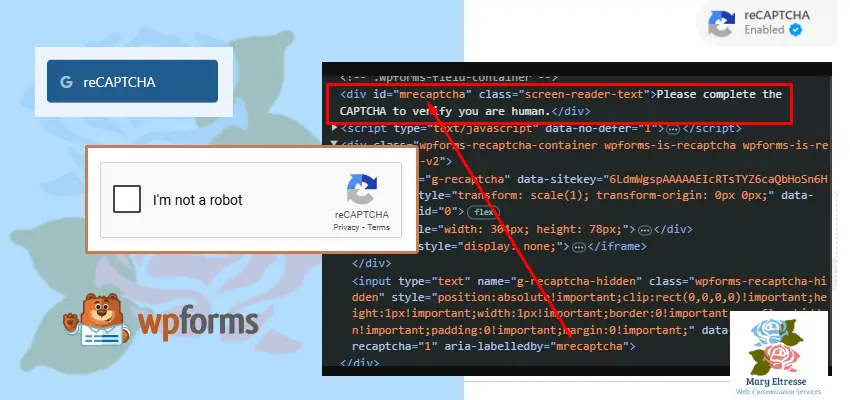
When optimizing our website, we encountered a common accessibility issue:
“Form elements do not have associated labels”
Specifically, this pertains to the Google ReCaptcha field on forms built with WPForms.
Accessibility tools flag this because the ReCaptcha widget does not have an associated label, making it less user-friendly for screen readers.
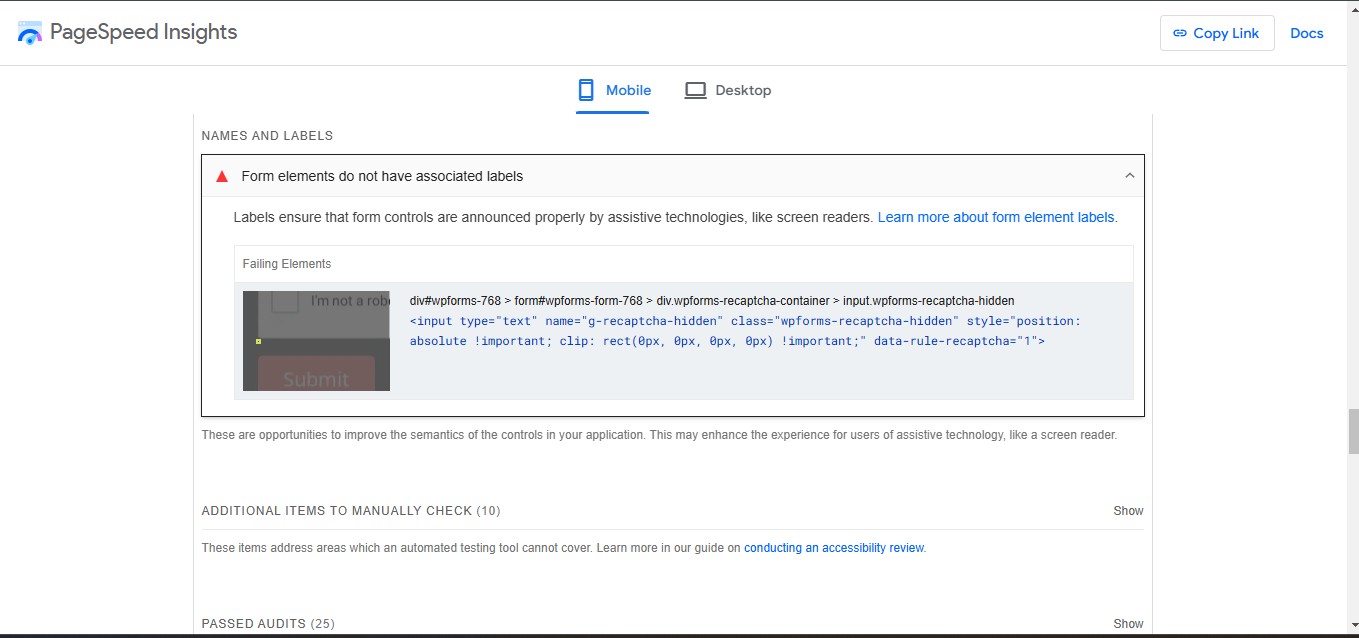
The Problem
Although WPForms provides extensive hooks and filters for customization, there isn’t a built-in hook for adding a label to the ReCaptcha field.
This lack of a predefined solution means a developer must delve into the plugin’s codebase to implement the solution.
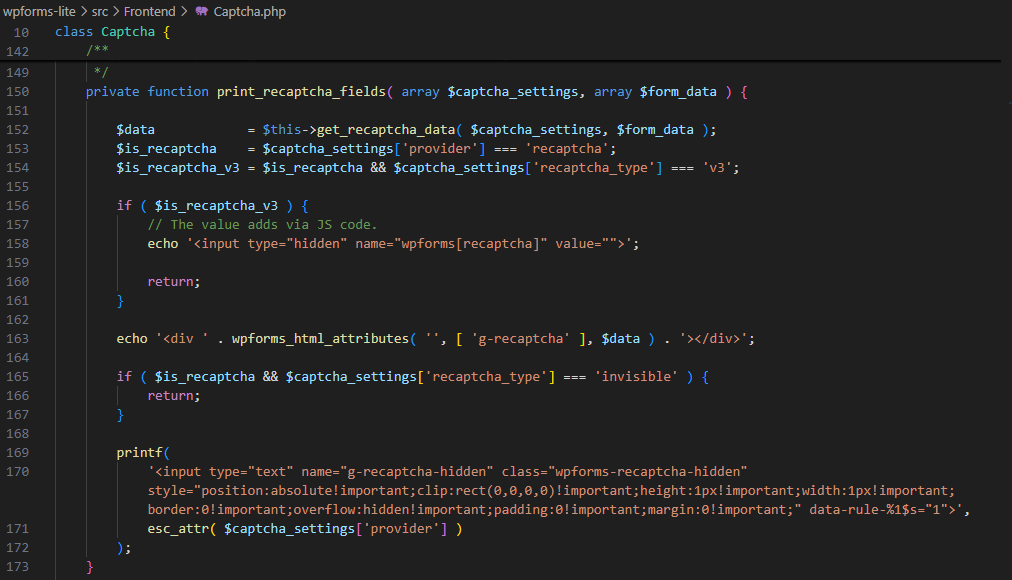
This code is located in src > Frontend > Captcha.php inside the wpforms-lite folder.
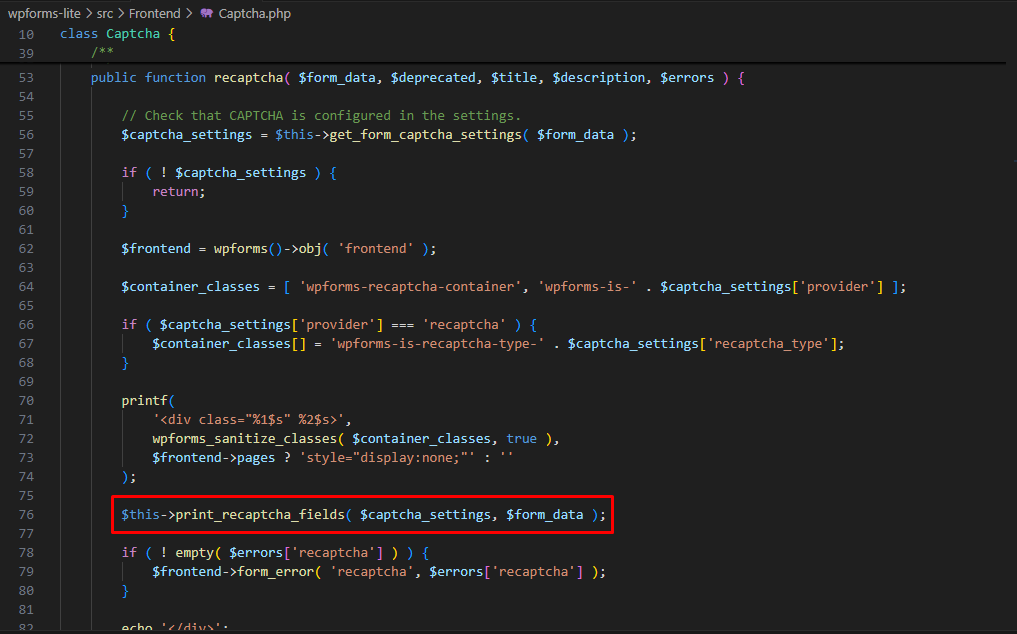
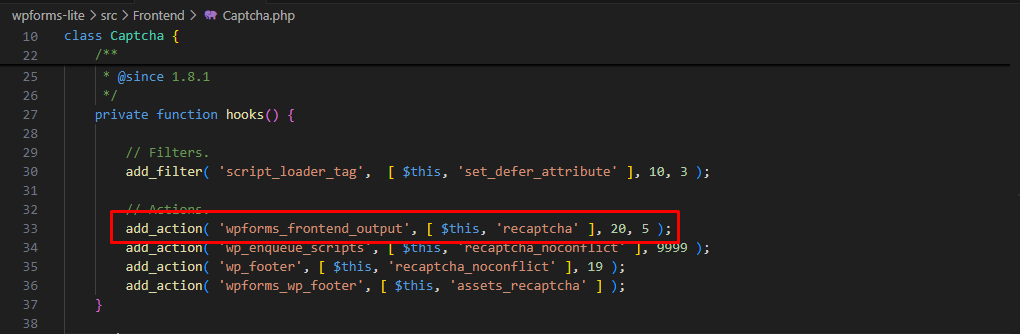
This hook is what we used to add the label to the captcha field.
The Solution
After analyzing the WPForms code, we created a custom function to add an accessible label to the ReCaptcha field.
To make the ReCaptcha field accessible and compliant with accessibility standards, we created a custom callback function that injects an accessible label and dynamically associates it with the ReCaptcha container.
Here’s the full implementation:
add_action( "wpforms_frontend_output", "add_wpforms_captcha_label", 10, 5 );
function add_wpforms_captcha_label( $form_data, $deprecated, $title, $description, $errors ){

    // Retrieve the captcha settings for the form.
    $captcha_settings = get_form_captcha_settings( $form_data );

    if ( ! $captcha_settings ) {
        return;
    }

    // Add an accessible label for the ReCaptcha.
    printf(
        '<div id="mrecaptcha" class="screen-reader-text">Please complete the CAPTCHA to verify you are human.</div>
        <script type="text/javascript" data-no-defer="1">
            document.addEventListener("DOMContentLoaded", function() {
                var recaptchaHidden = document.querySelector(".wpforms-recaptcha-hidden");
                if (recaptchaHidden) {
                    recaptchaHidden.setAttribute("aria-labelledby", "%s");
                }
            });
        </script>',
        'mrecaptcha'
    );
}
The get_form_captcha_settings function checks if ReCaptcha is properly configured for the form and retrieves the settings.
This is adapted from WPForms’ private methods to ensure compatibility.
/**
 * Helper function to retrieve captcha settings.
 *
 * This function is adapted from the WPForms Captcha class, as its methods are private.
 *
 * @param array $form_data Form data and settings.
 * @return array|null Returns captcha settings if configured, otherwise null.
 */
function get_form_captcha_settings( $form_data ) {

    $captcha_settings = wpforms_get_captcha_settings();

    // Validate global captcha settings.
    if (
        empty( $captcha_settings['provider'] ) ||
        $captcha_settings['provider'] === 'none' ||
        empty( $captcha_settings['site_key'] ) ||
        empty( $captcha_settings['secret_key'] )
    ) {
        return null;
    }

    // Ensure the form has captcha enabled.
    if (
        ! isset( $form_data['settings']['recaptcha'] ) ||
        $form_data['settings']['recaptcha'] !== '1'
    ) {
        return null;
    }

    // Check if the ReCaptcha type and settings align with the form.
    $is_recaptcha_v3 = $captcha_settings['provider'] === 'recaptcha' && $captcha_settings['recaptcha_type'] === 'v3';

    if ( wpforms()->obj( 'amp' )->output_captcha( $is_recaptcha_v3, $captcha_settings, $form_data ) ) {
        return null;
    }

    return $captcha_settings;
}
Key Features of the Solution
Accessible Label
The code adds a visually hidden but screen-reader-detectable label (screen-reader-text) for the ReCaptcha field. It ensures screen readers read: “Please complete the CAPTCHA to verify you are human.”
Dynamic Association
The aria-labelledby attribute is dynamically assigned to the ReCaptcha container. This ensures accessibility tools like Lighthouse detect the association and validate it successfully.
Use of data-no-defer="1"
Adding data-no-defer="1" to the <script> tag ensures:
- Compatibility with LiteSpeed Cache: LiteSpeed optimizations often defer scripts, which might cause issues if ReCaptcha’s dynamic association isn’t processed in time.
- Lighthouse Detection: Ensures the script runs without deferring, so Lighthouse can detect the
aria-labelledbyattribute association properly.
Improved Lighthouse Scores
With the script executed without deferring, the aria-labelledby attribute is accurately detected during Lighthouse audits, addressing the “Form elements do not have associated labels” warning.
Why Use data-no-defer="1?
LiteSpeed Cache and other performance tools often defer scripts to improve loading speeds.
However, accessibility-related scripts like this one need to run immediately after the DOM is loaded to ensure elements are correctly labeled.
The data-no-defer="1" attribute ensures the script is not deferred while retaining compatibility with LiteSpeed.
Steps to Implement
- Add the Code: Copy the script into your WordPress theme’s
functions.phpfile or a custom plugin. - Test Accessibility: Use screen readers and accessibility tools like Lighthouse or Axe to verify the ReCaptcha field now has an associated label.
- Monitor Performance: Check that the script runs correctly without interfering with LiteSpeed Cache or other optimizations.
Conclusion
This approach resolves the accessibility issue while maintaining compatibility with modern optimization tools like LiteSpeed.
It ensures your forms are both user-friendly and compliant with accessibility standards.
If you have any questions or need further assistance, feel free to reach out!
